Stop editing your live Shopify theme: dev and live themes with GitHub
How professional Shopify theme development works: a live theme and a preview theme connected to GitHub, every change checked before customers see it, and nothing lost when you update.

Written by: Jere Merivirta · Founder, Merivirta Digital
Published 4 min read
Short answer
Keep your Shopify theme in GitHub and connect two branches to two themes with the Shopify GitHub integration: main to the published theme and dev to an unpublished preview theme. Make every change in its own branch, check it with Theme Check, review it on the preview theme, and only then merge it into main. Edits saved in the theme editor are committed back to GitHub, so nothing gets lost.
Last tested
Editing the published theme straight in the code editor feels quick. It is also the most common way an online store breaks in the middle of a sale. A missing {% endif %} shows up to every customer at once, there is no record of who changed what, and the next theme update quietly wipes out years of small fixes.
Professional Shopify teams work differently. Here is the setup we use for every client theme, and why it makes a store safer to develop.
Why editing the live theme goes wrong
- Every mistake is public at once. There is no step between saving and customers seeing the result.
- There is no history. When something breaks next week, nobody knows which change caused it or how to undo it.
- Updates become scary. When the theme vendor releases a new version, you cannot tell which files were customised, so the update is postponed for years.
- Two people overwrite each other. A developer and a marketer editing the same file is a guessing game.
How the Shopify GitHub integration works
Shopify has an official GitHub integration in the theme library. Once the Shopify GitHub app is installed, you connect a branch under Online Store → Themes → Add theme → Connect from GitHub. It connects a branch of a GitHub repository to a theme in your store, and keeps the two in sync in both directions:
- When the connected branch changes in GitHub, Shopify updates the theme.
- When someone saves changes in the Shopify admin, in the theme editor, the code editor or through a theme app, Shopify commits them to the branch. The commit names the shop and the person who last edited the theme.
The second direction cannot be turned off, and that is a good thing: the merchant keeps using the theme editor as before, and GitHub still has the full history.
Only the standard theme folders sync: assets, blocks, config, layout, locales, sections, snippets and templates. Other files in the repository, such as documentation, stay in GitHub only. The branch must contain the theme exactly as it runs, without a build step.
Two branches, two themes: main and dev
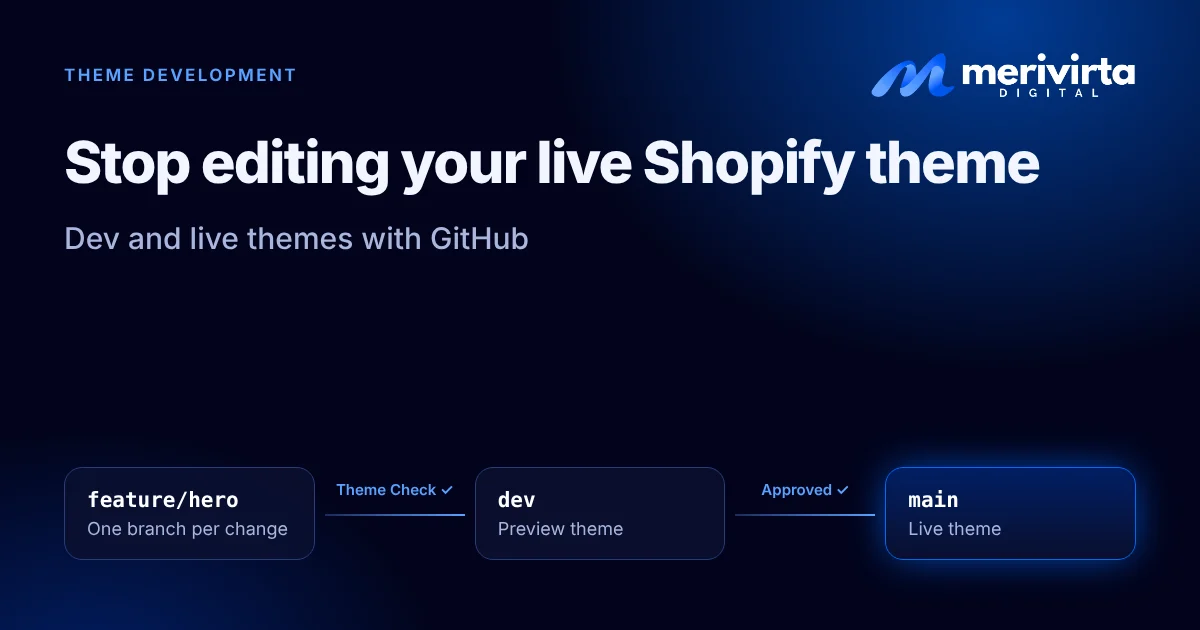
We connect two branches of the same repository to two themes:
| Branch | Theme in the store | Used for |
|---|---|---|
main | the published theme | what customers see |
dev | an unpublished copy | previewing and approving work |
The preview theme has its own preview link, so the merchant can open the store as it will look after the change, on a phone and on a desktop, without customers seeing anything.
How a change moves to the live store
- A branch for each change. Every task gets its own branch, for example a new home page section or a faster product page.
- Theme Check before anything else. Shopify’s own linter, run with Shopify CLI (
shopify theme check), finds Liquid errors, missing translations and performance problems. We run it on every pull request, and an error stops the change. - Into dev. When the check is green, the change is merged into
dev, and the preview theme updates within seconds. - Review on the preview theme. The merchant looks at the preview link and says yes, or asks for changes.
- Into main. Only after approval is
devmerged intomain, and the published theme updates.
Before starting new work, we first bring
mainintodev. Edits the merchant saved in the live theme editor are then part of the work, and nothing saved in the store is overwritten.
Respect the merchant’s content
Some theme files are content, not code. config/settings_data.json, the JSON templates in templates/, the section groups (header and footer) and the locales files hold what the merchant has set in the theme editor: texts, images, colours and section order.
We change those files only when the task needs it, keep the edit minimal, and in a conflict keep the store’s version. That is how the merchant and the developer can work on the same theme without stepping on each other.
What this gives a merchant
- No broken store in the middle of a sale. Every change is checked and previewed first.
- A full history. Every change, also those made in the theme editor, has a date, an author and a way back.
- Updates you can actually do. The customisations are visible in GitHub, so a new theme version can be brought in and tested on the preview theme first.
- Room for more people. A developer, a designer and the merchant can work at the same time.
If you are on Basic or on Plus
The workflow is the same on every plan, and it is just as useful in a small store as in a large one. In a small store, it mostly protects you from a broken store and lost changes. In a large store with several people and campaigns, you can also connect extra branches for campaign themes and publish them for the duration of the campaign.
Sources: Shopify’s documentation on the GitHub integration for themes and version control for themes.
Want this set up for your store, or want us to look at your current theme first? Ask Virta below.
Questions and answers
Does the GitHub integration work on every Shopify plan?
Yes. The integration is part of the theme library in the Shopify admin, not a Plus feature. You need the Shopify GitHub app, a staff or collaborator account with the Themes permission, and write access to the repository whose branch you connect.
What happens to changes made in the theme editor?
Shopify commits them to the connected branch when they are saved. The commit names the shop and the person who last edited the theme. This cannot be turned off.
Can I still use the theme editor myself?
Yes. Content and settings you save in the theme editor are stored in the theme files and committed to GitHub. A developer simply brings those commits into their own work before changing the same files.
Do I need a developer for this setup?
Connecting a branch takes a few clicks in the theme library. Working with branches, pull requests and Theme Check is where an experienced Shopify developer saves you time and mistakes.
Want this done for your store?
Ask Virta, our AI assistant. It answers right away, collects the details, and one of our experts gets back to you personally.
Ask Virta